QR Code Not Scanning? 12 Causes and How to Fix Each One
A QR code that will not scan has failed in one of three places: the code itself, the device reading it, or the destination it points to. Working through them in that order finds the problem faster than guessing, because the first category covers most failures and is the only one you control completely.
1. Not enough contrast
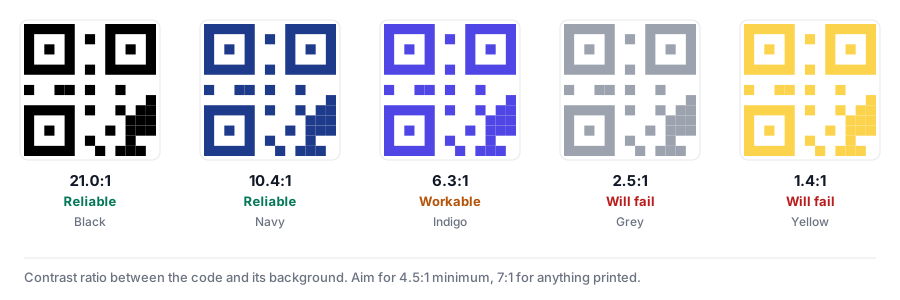
This is the single most common cause. Scanners find the pattern by looking for dark modules on a light background. Pastel-on-white, mid-grey-on-grey, or a colour that looks strong on a monitor but prints muddy will all defeat that.
Fix: aim for a contrast ratio of at least 4.5:1 between the code and its background, and treat 7:1 as the target for anything printed. Our generator shows the ratio live and warns before it becomes a problem. Dark navy, deep green and near-black all work; light yellow, pale pink and mid-grey rarely do.
2. Inverted colours
A light code on a dark background is the reverse of what the specification assumes. Recent iPhones and Android phones cope with it, but older devices, industrial scanners and many in-app readers do not.
Fix: if the design really needs a dark background, put the code inside a light panel rather than inverting it. You keep the look and lose the risk.
3. The quiet zone is too tight
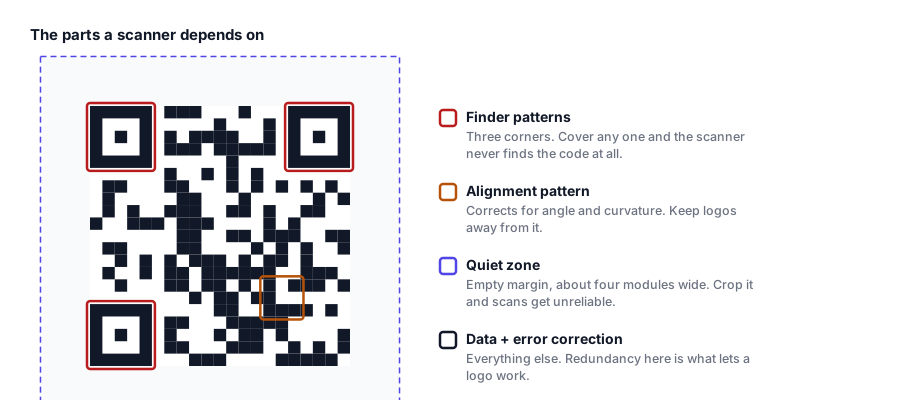
Every QR code needs an empty margin around it, traditionally four modules wide. Crop into that margin - or butt the code up against a photo, a border or the edge of a label - and scanners struggle to find where the pattern begins.
Fix: leave clear white space on all four sides, roughly 8-10% of the code’s width.
4. It is printed too small
Below about 2 x 2 cm, most phone cameras cannot resolve individual modules at arm’s length.
Fix: use the 10:1 rule - the code should be about one tenth of the distance it will be scanned from. A code read from 30 cm needs to be 3 cm across; one read from 3 m needs to be 30 cm. Add 20-30% for low light, curved surfaces or older devices. Our size guide works through the arithmetic.
5. Too much data crammed in
QR codes grow denser as content grows. A 900-character vCard with a full postal address produces a much finer grid than a short URL, and fine grids need bigger prints and better cameras.
Fix: shorten the content. Use a short link instead of a long URL with tracking parameters, trim optional vCard fields, or move a long text block to a web page and link to it.
6. The logo covers too much
A logo replaces modules. Error correction can reconstruct some of them, but not without limit.
Fix: keep the logo under about 30% of the code’s width, and use High error correction whenever a logo is present. Our editor raises the level automatically when you add one.
7. Error correction is too low
Level L recovers about 7% of a damaged code; level H recovers about 30%. Low levels produce a sparser, easier-to-scan grid but leave no margin for scuffs, folds or ink spread.
Fix: use Q or H for anything printed, especially on packaging, outdoors, or on surfaces that get handled.
8. The print is blurry or the ink has spread
A code exported at 300px and blown up to poster size becomes a fuzzy mess. Ink bleed on absorbent stock has a similar effect: adjacent dark modules merge and the pattern becomes unreadable.
Fix: export SVG for print. It is vector, so it stays sharp at any size. If your printer insists on raster, supply at least 300 DPI at final size and ask them about dot gain on uncoated stock.
9. It is on a curved or reflective surface
Bottles, cans, laminated menus and glossy signage all distort or reflect the pattern.
Fix: print bigger than the arithmetic suggests, raise error correction, and prefer matte finishes. On a cylinder, keep the code narrow relative to the curve.
10. The destination is dead
The code scans perfectly and the phone shows an error. This is a link problem, not a code problem. It is also extremely common with the “free” dynamic codes some services offer: those encode a URL on the provider’s domain, so when the free tier ends, every printed code breaks. One 2026 survey found 29% of consumers had already hit a dead QR code.
Fix: test the URL in a browser. For anything printed in volume, encode a link on a domain you control, so you can always change what it serves. Static codes on your own domain cannot be switched off by a third party.
11. The scanner is the problem
Camera permissions off, a dirty lens, a very old OS, or an in-app browser with a limited reader.
Fix: test with at least two different phones, one iOS and one Android, before printing. If it works on one and not the other, the code is probably marginal rather than broken - fix the contrast or size anyway.
12. The content type is not supported
WiFi and vCard codes rely on the reader understanding the payload format. iOS 11+ and Android 10+ handle WiFi natively; older devices show a string of text instead of joining the network.
Fix: for guest WiFi, print the network name and password underneath the code as a fallback. It costs nothing and rescues the small share of visitors whose phones cannot handle it.
A quick test before you print
- Scan it with two different phones.
- Scan it from the distance people will actually stand at.
- Scan it in poor light.
- Print one proof and scan the print, not the screen.
- Check the destination loads.
Most failures show up in step four. Screens are backlit and perfectly sharp; paper is neither.
Our QR code generator scores every code as you design it and names the specific problem - low contrast, tight quiet zone, oversized logo - rather than just telling you something is wrong.